

8 min read
Touchscreen MacBook Pro: Apple’s new PROLED XDR display and what it changes
Apple has announced its touchscreen MacBook Pro. Here is what is confirmed, and how product teams can prepare useful apps for another way to interact.
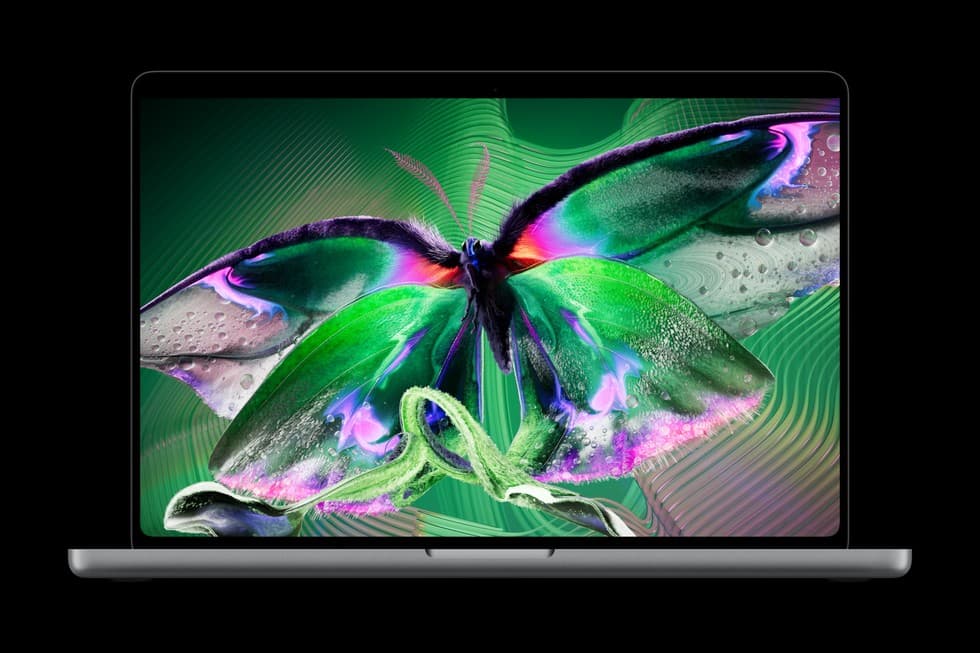
Apple’s touchscreen MacBook Pro is official. Announced on October 28, 2026, it brings direct screen interaction to a familiar professional laptop. The important question for product teams is what that changes for real workflows, accessibility, testing, and the apps customers already use.
This article follows Apple’s published announcement and product page, checked on October 28. The cover is Apple’s product image, credited to Apple. The product recommendations below are our analysis of how teams can make another input method useful for their customers.
What has Apple confirmed about the touchscreen MacBook Pro?
Apple calls the new models MacBook Pro with PROLED XDR Display. They are announced products with upcoming availability, rather than an unconfirmed touchscreen rumor. The release gives the following launch details for the U.S.; other markets and configurations need checking separately.
| Launch detail | Confirmed information |
|---|---|
| Announcement and pre-orders | October 28, 2026 |
| Availability begins | Friday, November 6, 2026 |
| Model families | 14-inch and 16-inch |
| U.S. starting price with M5 Pro | $2,899 for 14-inch; $3,399 for 16-inch |
On the official product page, Apple describes a tandem OLED display, direct Multi-Touch interaction, Dynamic Island, and M5 Pro or M5 Max configurations. Touch sits alongside the keyboard and trackpad. The broader MacBook Pro lineup should be checked carefully: this announcement is not a claim that every existing MacBook now has a touchscreen.
For anyone planning a product launch around the hardware, the distinction between announcement, pre-order, and actual device availability matters. A specification can support initial scoping, but it cannot replace hands-on testing of your application. We recommend recording which configuration and operating-system version will be used for acceptance testing, and who will have access to the hardware before making a compatibility promise.
Where could Touch improve a professional desktop workflow?
The most interesting opportunity is direct manipulation. Imagine a field-service operator selecting an area of a floor plan, a designer positioning an object on a canvas, or a client exploring a property model during a meeting. Touch could shorten the distance between the thing a person sees and the action they want to perform. These are potential product use cases, not measured results for the new hardware.
The right first experiment is a task, not a complete interface redesign. Pick one recurring action that is awkward today. Let users try it with the current controls and with direct screen interaction. Observe mistakes, recovery, comfort, and whether they switch back to the trackpad. A touch interaction deserves further investment when it makes that particular workflow clearer or easier for the intended audience.
Direct interaction also changes what people can see while acting. A finger can obscure the selected object or its label. A small drag handle that works with a cursor may be hard to acquire, and a precise adjustment may need a numeric alternative. Our recommendation is to show selection clearly, provide forgiving interaction regions, and keep an easy way to cancel or undo a change.
Why must keyboard and trackpad workflows remain first-class?
Apple’s Human Interface Guidelines for gestures recommend familiar interactions and more than one way to perform important tasks. People may prefer or need a keyboard, voice input, or an assistive control. That principle is especially useful when adding another input method to a desktop product with established shortcuts and habits.
We would preserve the workflow someone already knows. A person might type a search, touch a result, use a trackpad for a precise adjustment, and finish with a keyboard shortcut. Switching between these inputs should not lose selection, reset a draft, or unexpectedly change the active tool. The same action should have the same meaning and produce the same durable result whichever supported input starts it.
For a business application, consistency usually matters more than a distinctive gesture. Keep visible controls for important actions, preserve focus order, and avoid turning an essential command into an undiscoverable swipe. If an interaction changes data, make the save state and recovery path clear. A user should be able to complete the job without learning an entirely new set of movements.
What should teams review before changing a web app for Touch?
The browser has an established foundation for multiple input types. MDN’s Pointer Events documentation describes a common event model for mouse, pen, and touch, including identification of the input type. That is a practical starting point for custom interactions, while ordinary links, buttons, and forms should retain their expected browser behaviour.
Our first review would look for essential information hidden behind hover, tiny controls packed into dense rows, drag-only operations, and menus that disappear when the input changes. These issues can already affect users on other touch devices. Fixing them can improve the product before the new MacBook reaches the team. Do not infer that a large screen necessarily means the current interaction is a mouse.
Custom canvases need particular care. Decide when movement should scroll the page, pan the canvas, move an object, or select a range. Provide an explicit mode or a clear affordance when those actions could conflict. Test cancellation and repeated input. Reusing an existing mobile layout wholesale is unlikely to preserve the density and precision people expect from a professional desktop workspace.
How should native Mac applications approach gestures and accessibility?
For native work, SwiftUI’s gesture documentation describes composing familiar interactions. It also specifically recommends using a Button when a button is needed, instead of implementing a tap gesture as a substitute. Standard controls carry expected behaviour and accessibility semantics that a custom surface otherwise has to reproduce.
We recommend an accessibility review before adding custom gesture recognition. Give controls meaningful labels, preserve logical navigation, and make the selected and disabled states understandable. Do not rely on colour alone to communicate a successful action or a dangerous one. A visible alternative should exist for an interaction that requires a precise motion, a sustained press, or multiple fingers.
Keep the architecture focused on application actions rather than hardware events. For example, a document-editing command should validate permissions and update the model through the same path whether it comes from a menu, shortcut, or touch control. That makes the behaviour easier to review and test. It also reduces the chance that a new input path accidentally bypasses confirmation, validation, or an existing undo mechanism.
Does the new hardware change the case for on-device AI?
Apple presents the new machines as a platform for AI as well as creative work. The useful product decision is still workload-specific. We would not promise that a particular local model, coding agent, or document-processing feature will meet its quality and latency requirements simply because the machine has a newer display or a capable chip. The actual model, memory use, and operating conditions need evaluation.
Consider a document assistant that helps a user explore a large visual workspace. Touch could select the relevant region, while an AI feature explains or transforms the selected material. The product must still define what is sent to a model, whether processing happens locally or remotely, and how a user reviews the result. A direct gesture should not silently authorize a destructive action or an external upload.
A useful evaluation compares the complete task, including loading time, model readiness, result quality, and correction effort. Include unavailable resources, interrupted processing, and sensitive documents in the test plan. If cloud services are involved, keep authentication and data boundaries explicit. AI product engineering connects these decisions with the interface and backend, rather than treating the model as an isolated feature.
What should a mixed-input test plan include?
We recommend testing one complete customer journey with each supported input, then deliberately switching inputs partway through it. A screen that opens correctly is only the start. The important evidence is whether someone can select, edit, confirm, and recover reliably, including when the network is slow or the application loses focus.
| Test scenario | Evidence to collect |
|---|---|
| Keyboard-only completion | Logical focus order and access to every essential action |
| Touch followed by trackpad | Selection and active tools remain predictable |
| Drag interrupted or cancelled | No unintended save, duplicate action, or lost draft |
| Small target or dense toolbar | Users can acquire the intended control and recover from misses |
| Confirmation after AI output | The user understands the proposed change before it is applied |
| External display or changed window size | Useful layout and complete controls remain available |
Testing should also cover the machines your existing customers use. A new interaction must not make the ordinary Mac experience worse. Record the devices, operating systems, browsers, and application versions actually checked. Automated tests can protect state changes and permissions, while human observation is needed for comfort, discoverability, and whether the interaction makes sense in the working environment.
How can a product team turn this launch into a useful project?
Start with a customer segment and a job that happens often enough to matter. A device announcement can create attention, but that attention does not establish demand for a new application. Interview likely users, identify a workflow they already value, and recruit a small pilot through a channel you can continue using. Measure completed work and repeat use rather than interest in a hardware demo.
For an existing app, we would scope an interaction review before proposing a rebuild. Identify the highest-friction task, prototype an improvement, and agree on the evidence needed to proceed. For a new product, combine device feasibility with a clear acquisition and onboarding plan. Our web and mobile product services and engagement options provide starting points for that discussion.
The touchscreen MacBook Pro adds another way to work. The product opportunity is to make a valuable task feel natural across the inputs customers choose. Discuss about project in a 30-minute call to review your current application, target users, and first experiment. We can then define the design, engineering, testing, and release work around that concrete outcome.
Frequently asked questions
Has Apple officially announced a touchscreen MacBook Pro?
Yes. Apple announced MacBook Pro with PROLED XDR Display and Touch on October 28, 2026. This article uses Apple’s published release and product page, rather than treating older rumors as confirmed specifications.
When will the new MacBook Pro be available?
Apple lists pre-orders from October 28 and availability beginning November 6, 2026. Check Apple’s store for your country, configuration, and delivery estimate.
Does Touch replace the keyboard and trackpad?
No. Apple describes Touch as working alongside the keyboard and trackpad. Product teams should preserve familiar inputs and accessible alternatives.
Does a web app need a complete redesign?
Not necessarily. Start by reviewing hover-only information, small targets, custom drag interactions, keyboard access, and input switching. Prototype a specific improvement before committing to a rebuild.
Should product teams rebuild an application around the new hardware?
Start with a useful customer task and a small prototype. Evaluate the new interaction alongside existing controls, check the actual target hardware, and use the findings to decide whether broader changes are justified.
Make the next interaction useful.
A 30-minute call about your application, users, and first experiment.
Discuss about projectConnect interface design, application logic, AI, and backend systems.
Explore product engineeringKeep reading
Android Dev Summit 2026: AI workflows and the next device ecosystem
A practical look at agent-assisted Android development, on-device AI, native agent interfaces, XR, smart glasses, and automotive products.
Spatial AI — AI Builder for Home Design
Floor plans, footprint structure, and build-ready residential specs — starting with AI-assisted layouts you can refine, share, and move toward CAD-ready workflows.